
These instructions have now been updated and are available here: RX500 / RX620 Printer Potty Installation
Resetting the waste ink counter (RX500)
The RX500 can be reset using a keypad combination on the front of the printer itself. You do not need an adjustment utility although one can be used
- Hold down the “Clear + Setup + Power(On)” buttons until the printer powers on, then off, then back on again.
- Let go of the buttons when the LCD screen flashes a blank screen or contains a message that remains constant (eg: COPY ENDURANCE).
- Push the right SELECT button until “Rst. Ink OFC” shows on the LCD screen.
- Press the COLOUR button and follow the directions on the LCD screen
- Your counter should now be reset.
Original Instructions (Old version)
The RX500 is yet another “trapdoor” type printer so it’s going to very much a “same old” for experienced printer enthusiasts but for those who are new to this here’s the necessary information to get an external waste kit installed on your RX500.
Note: One of the pictures shows the RX620 but is exactly the same design as the RX500
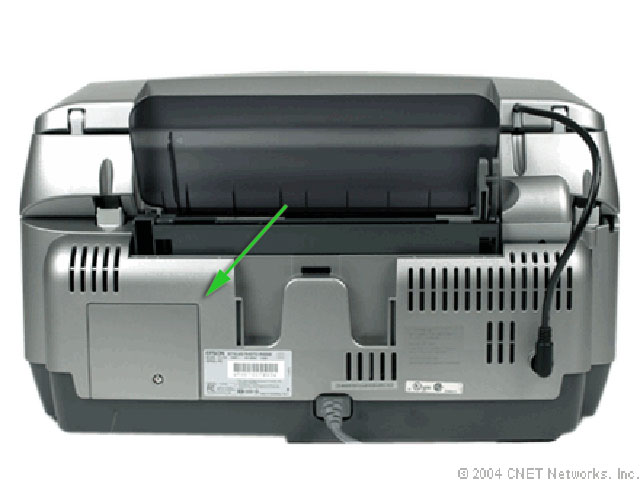 |
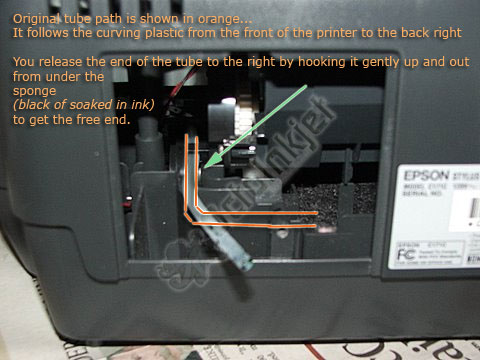
The Trapdoor (Access hatch)The RX500 is basically the exact same printer/waste system as the RX620. Removing the waste hatch is simply a case of unscrewing the retaining screw then lifting the access panel out. Once removed you’ll see the same layout as indicated in the annotated picture (left) Releasing the tube is simply a case of gently pulling the tube out from the right side (NOT the front!) and you’ll find your open/free tube end as indicated. |
 |
|
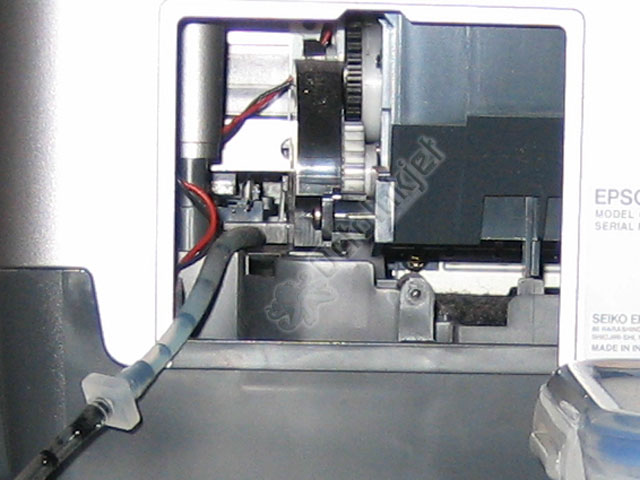 |
Connecting the KitYou’ve already completed the hard part of the process by freeing the waste tube but the remaining pictures indicate what an installed kit will look like. |
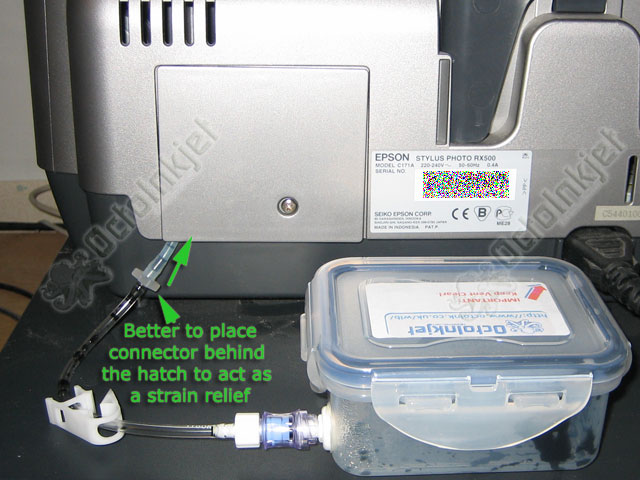 |
Closing the HatchThe connector in the picture (left) is shown outside the hatch… I would recommend placing it inside behind the hatch cover/trapdoor to act as a strain guard in case someone catches the waste kit. This way the tube pops off the connector on the waste kit side of the connection. If you put the connector outside the printer and have an accident it could break off the tube from the pump itself which is very difficult to repair! Closing the hatch itself you can either notch it as shown in other instructions or simply screw the retaining screw part way in so there’s enough space for the tube to exit without crimping it.
|