
We’re now able to offer a video guide of the process via YouTube:
An older slideshow of the process is also available below:
Note: This guide also covers the following Epson printer models:
BX525WD
SX525WD
TX525WD
B42WD
T42WD
This guide is primarily aimed at OctoInkjet customers who have purchased a Solo-X10 waste kit (Release pending) although customers with the earlier Solo+ can still apply some of the steps to their kit (but without the extra connector part to act as the strain relief).
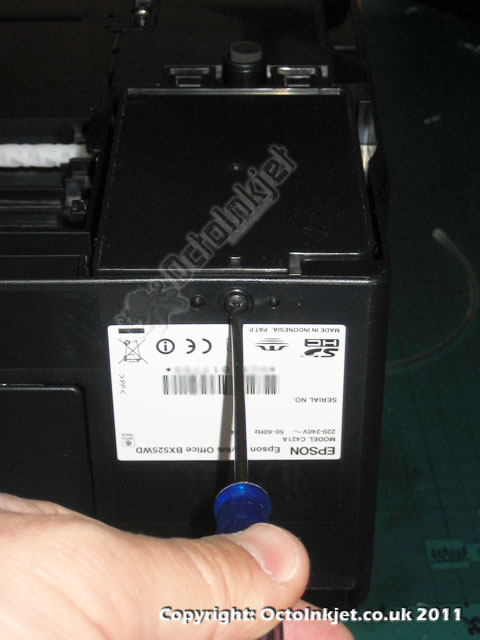 |
Identify and Release the Waste Pad HolderThe waste pad in the BX525 is located in the base of the printer (back right). Unlike the PX7xx/8xx models there is no metal plate but it’s easy to recognise and you will need to turn the printer over to get at it easily. |
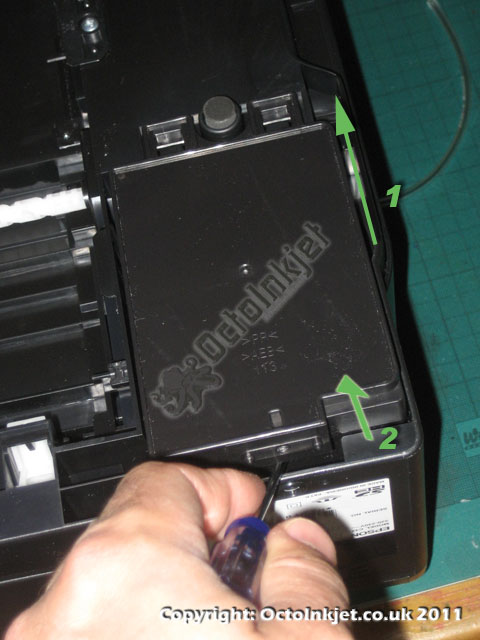 |
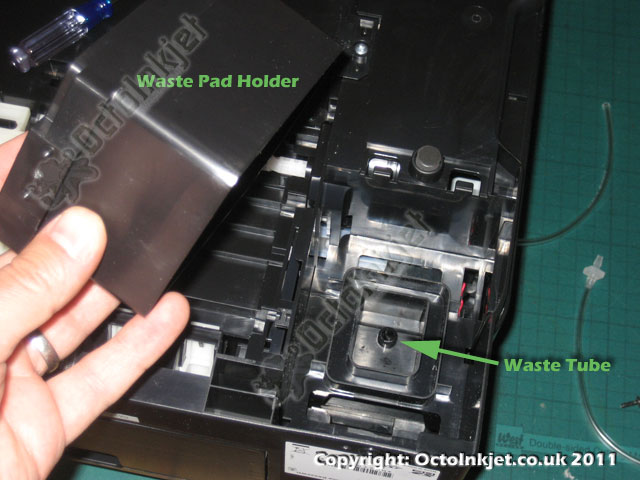
Remove Retaining Screw & Removing the Waste TankTo release the waste pad holder, you need to:
Once you have removed the tank you will see the waste tube as indicated in Image #3 below/left. |
 |
|
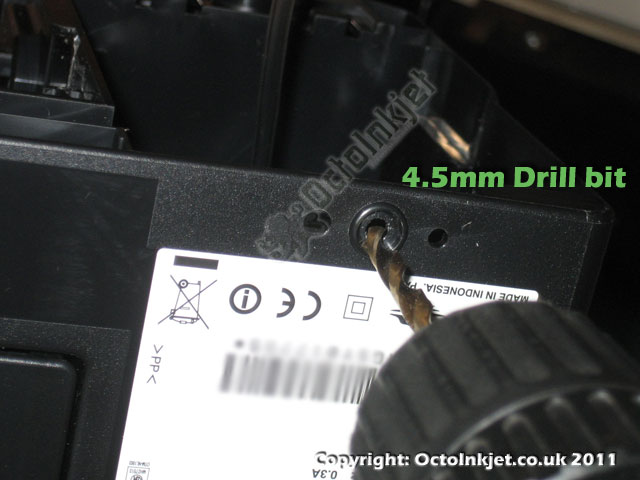 |
Widen the Screw Hole to allow Tube in/outIf you want to install the kit with the extra connecter you will need to expand the hole to at least 4.5mm diameter. |
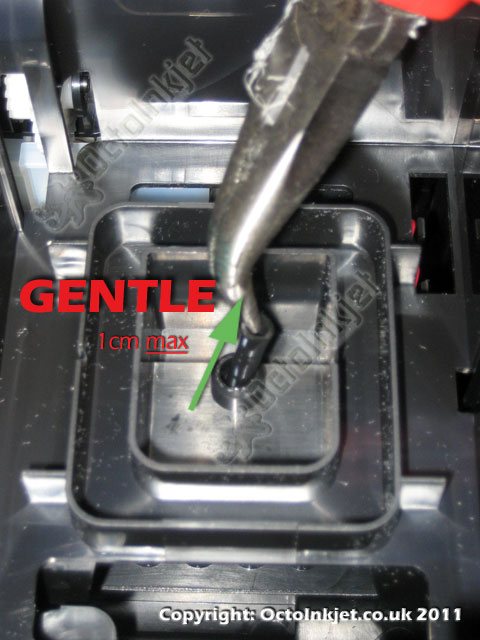 |
Gently Extend the Waste TubeYou need to connect the plastic barbed connecter to the original waste tube but first you’ll need to extend the tube so you can get it in. Tip: DO NOT over extend the tube or you will break it off the pump… 1cm should be more than enough. |
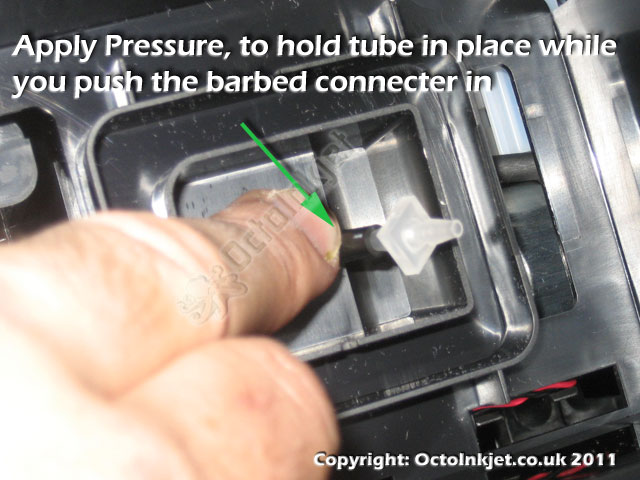 |
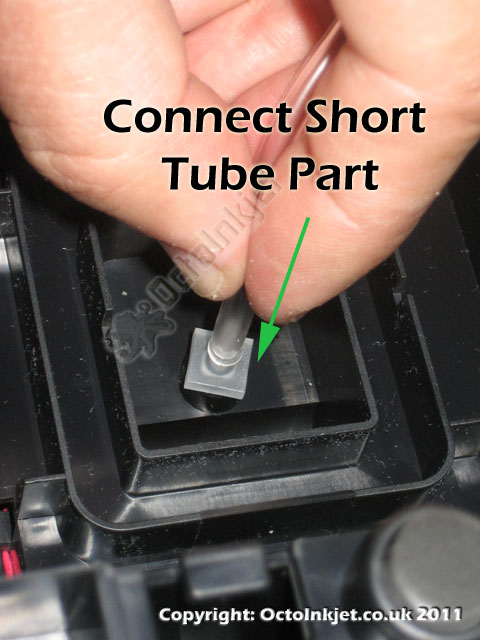
Connect the first Connector and Tube PartThe Solo-BX tube part consists of two sections of tubing, and two barbed connectors. Remove one of these connectors from the kits tube part and insert it into the printers own waste tube. Tip: Pinching the tube against the sides of the hole it pokes out of, can help stabilise it while you push the connector in. Once the connector is on you then need to attach the shorter of the two tube pieces to your newly installed connector (Image #7, left).
|
 |
|
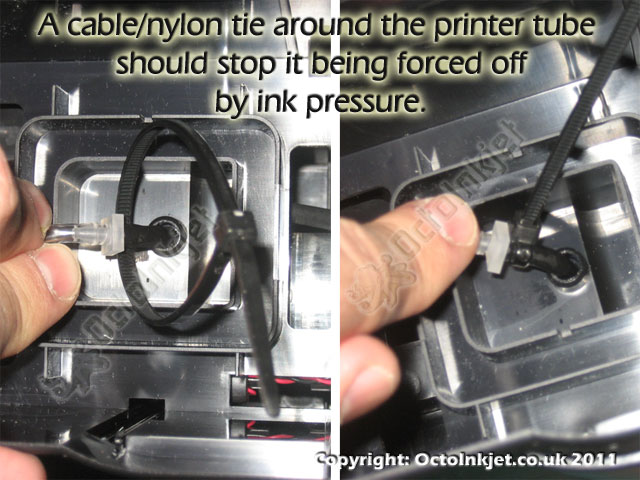 |
Securing the Connector to the Printers Waste TubeThe connection between the extension and tube is not particularly strong due to the difficulty in getting a wider fitting into the printers own waste tube. Naturally this means the waste ink could force the connector off (definitely NOT a good thing) so using the provided cable-tie will help secure the printer tube end of the connection. (See split image – left) |
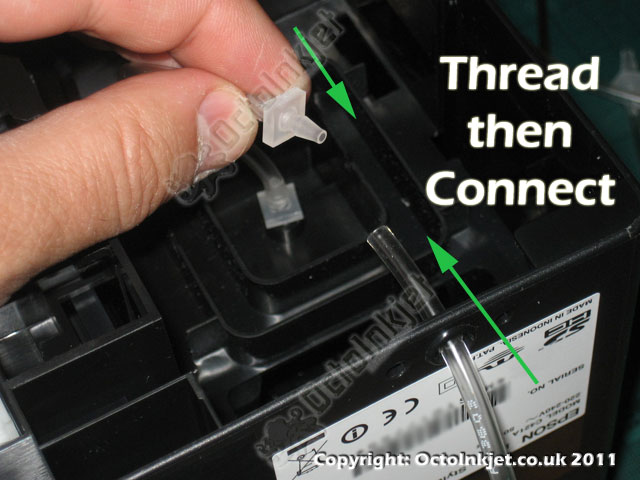 |
Thread and Connect Kit Tube Sections TogetherAssuming you have expanded the screw hole you need to thread the longer tube part through the hole and then reconnect the two parts using, yes… a connector (I like that word a lot… can you tell?)
Alternatively, if you didn’t bother with the hole expansion, you just make sure you’ve joined them together and the tube will end up running under the back of the printer. |
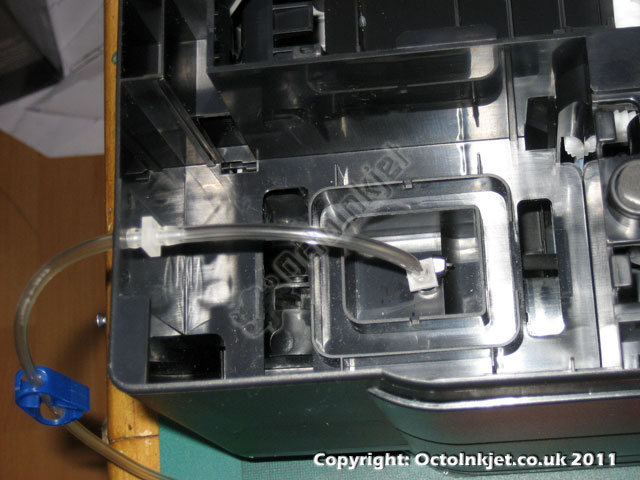 |
Tubing Part All Done.. and you’re done… If you have the tubing all hooked up and ready to go (as shown left) then you’re ready to turn the printer back over. |
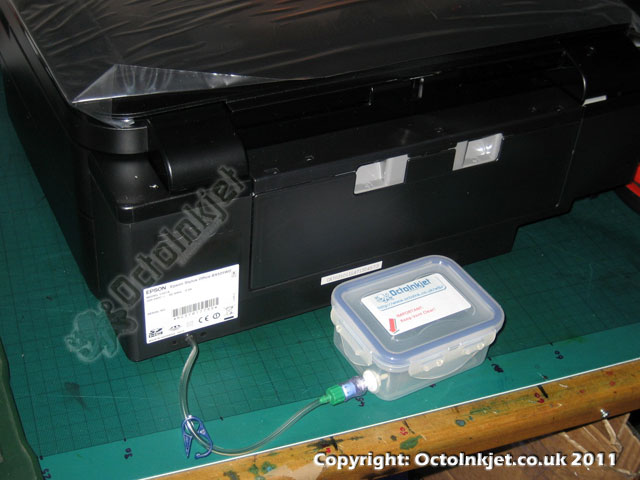 |
FinishedKind of obvious but at this point you turn the printer back over (No, you can’t and shouldn’t reinstall the waste tank… it won’t fit). It’s now a good idea to make sure there are not folds or kinks in the tubing so that ink will be able to flow to the tank and then connect the tank. IMPORTANT: To ensure you do not get caught out by the tube blowing off or some part failure, it’s recommended that you place your printer on some form of lipped tray or protected surface. I would also recommend placing some absorbant material (such as folded kitchen towel/paper-roll) in the area under the exposed tank to catch any ink that might be expelled here. |
Resetting the Waste Ink Counter
The only option is currently the WICReset utility.
Compatibility for this was added on September 30th 2011
Important:
Whichever utility you use you must be connected to your printer using a USB cable. None of the reset utilities will work over a network connection
Remember: The most up to date information on reset utilities will be available via the QuickFind tool.